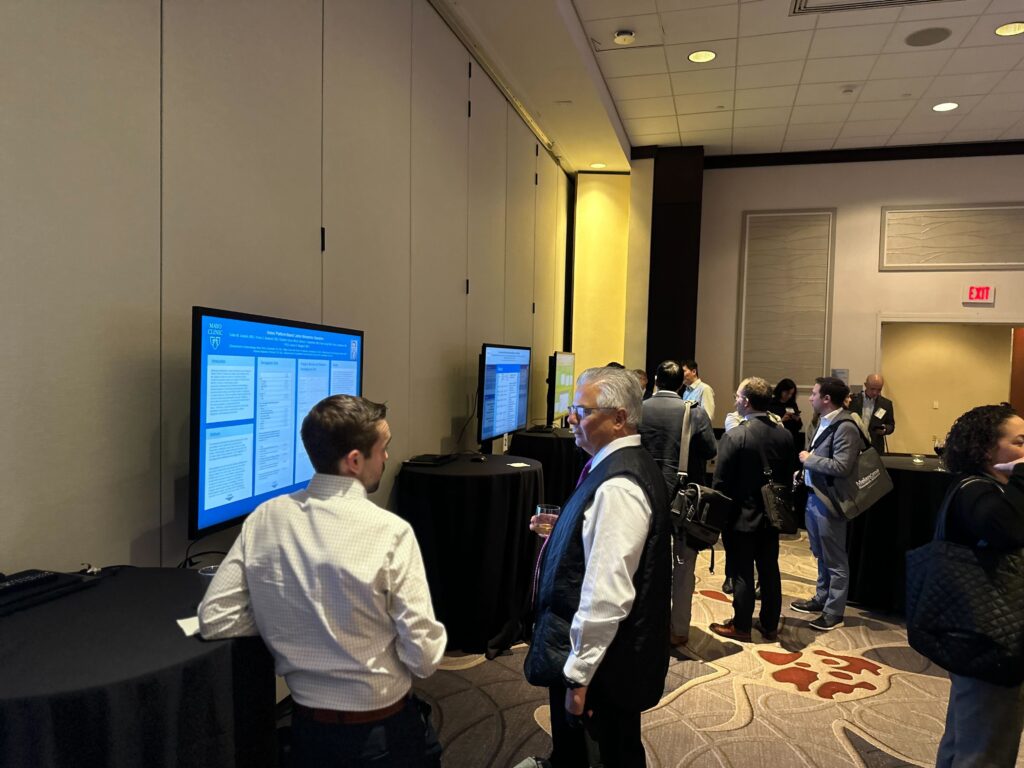
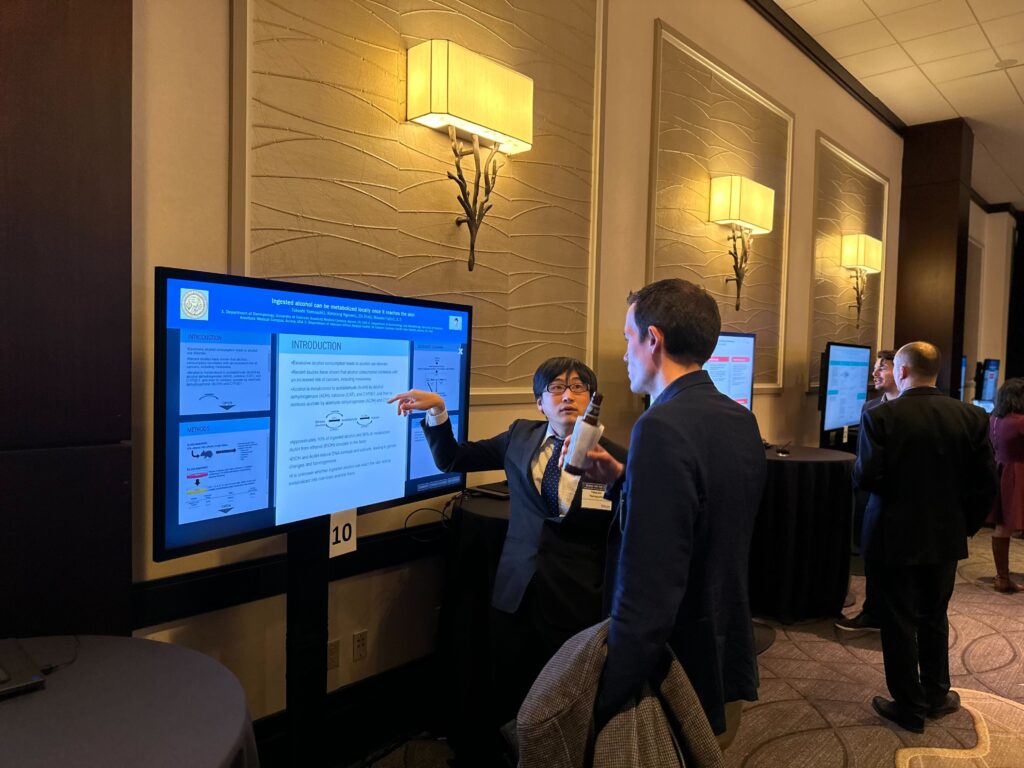
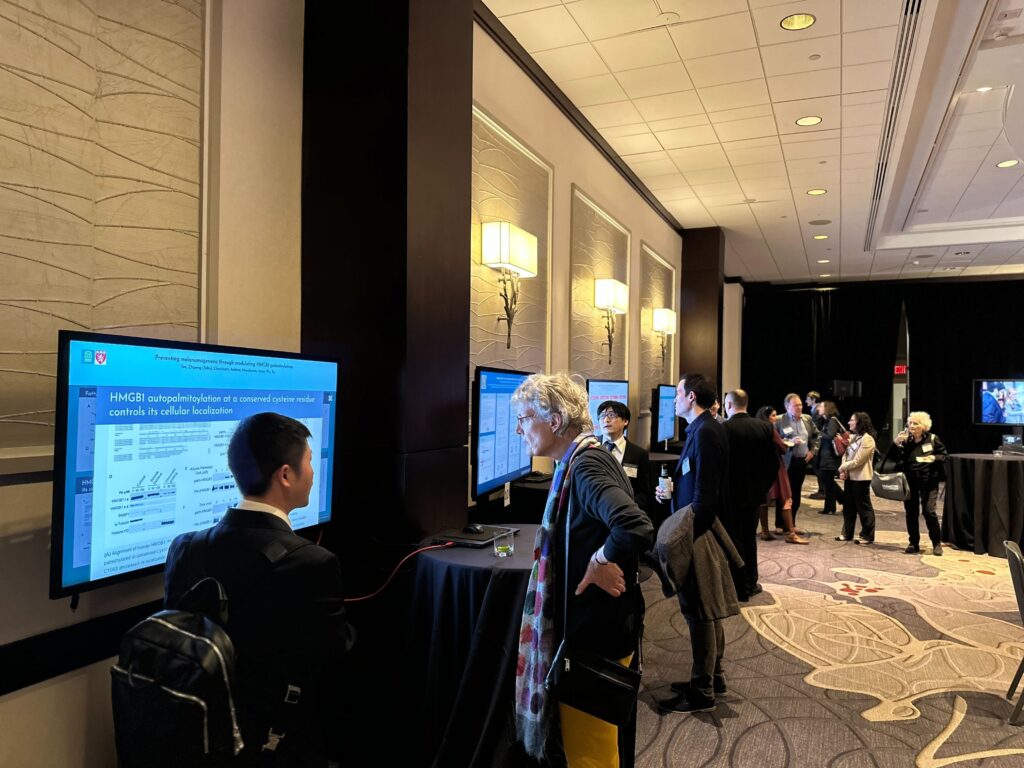
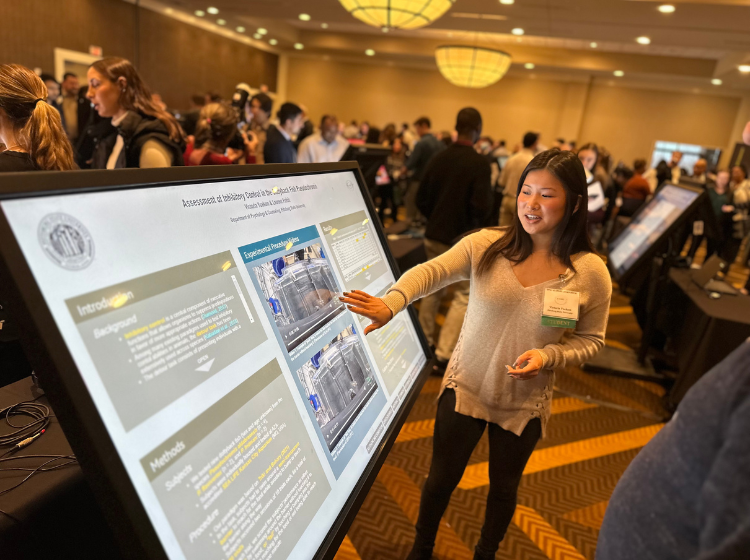
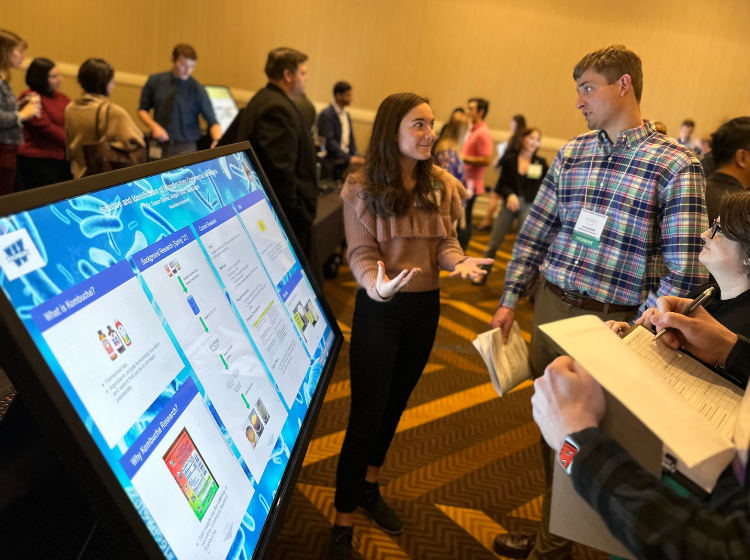
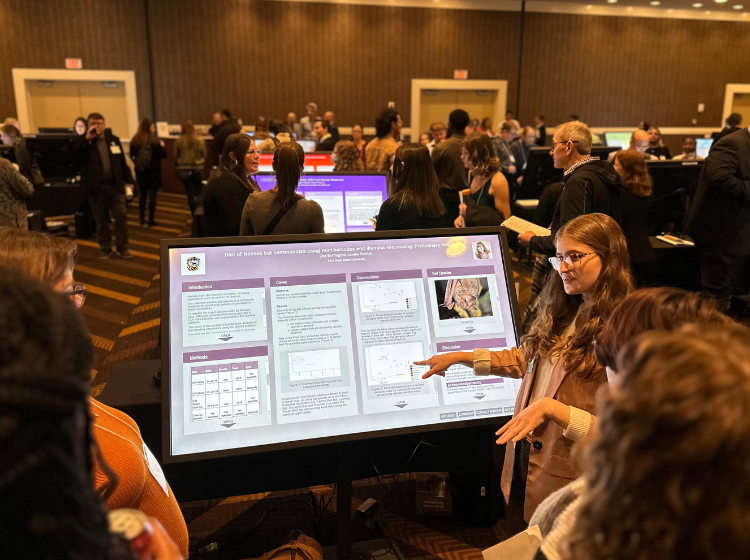
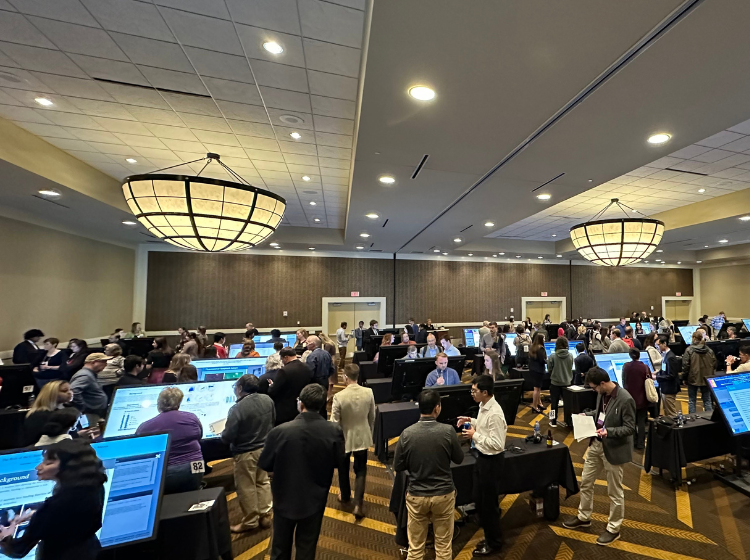
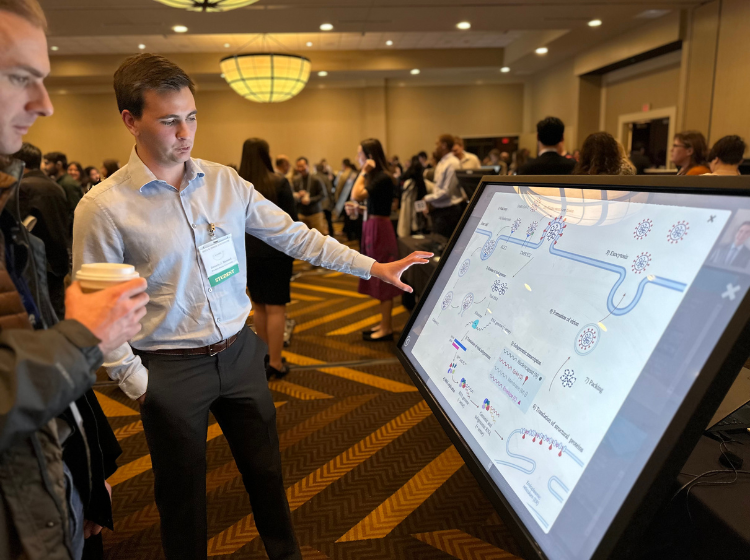
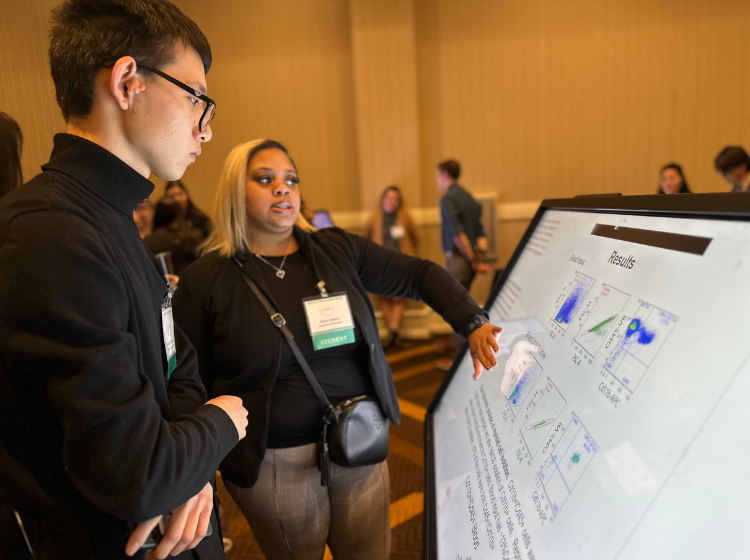
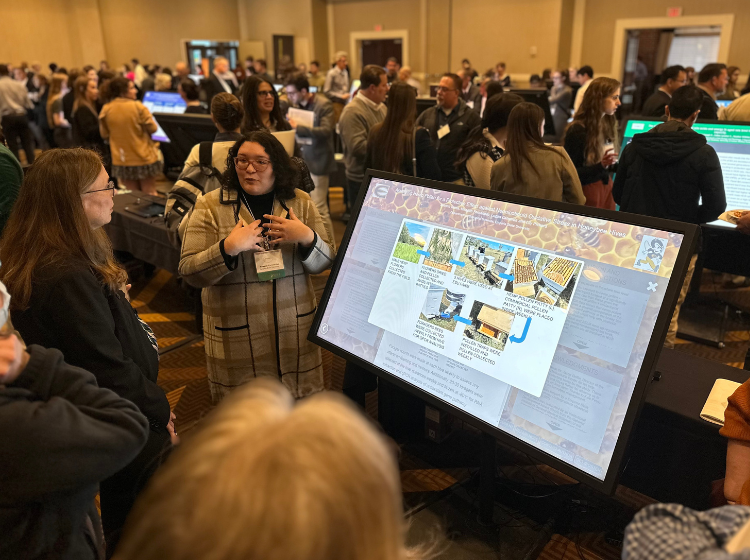
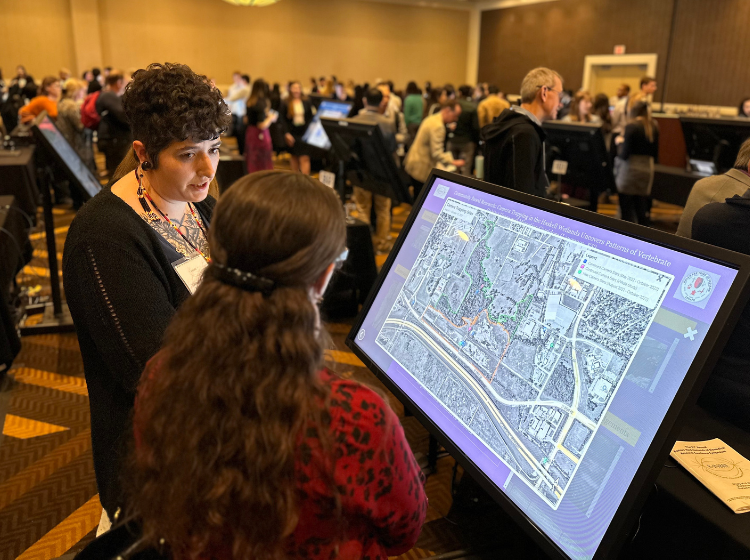
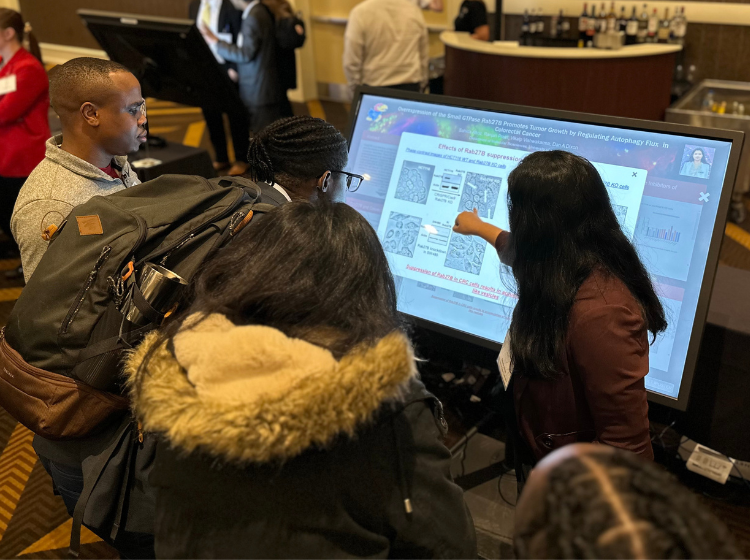
The Melanoma Research Alliance(MRA) Scientific Retreat took place in Washington DC with a virtual component for those unable to make it in person. There were 30 iPosters created for the event which were displayed across 15 large standing screens. The conference is an opportunity for key stakeholders across the field to network and share and present new ideas and issues within this important field of research.
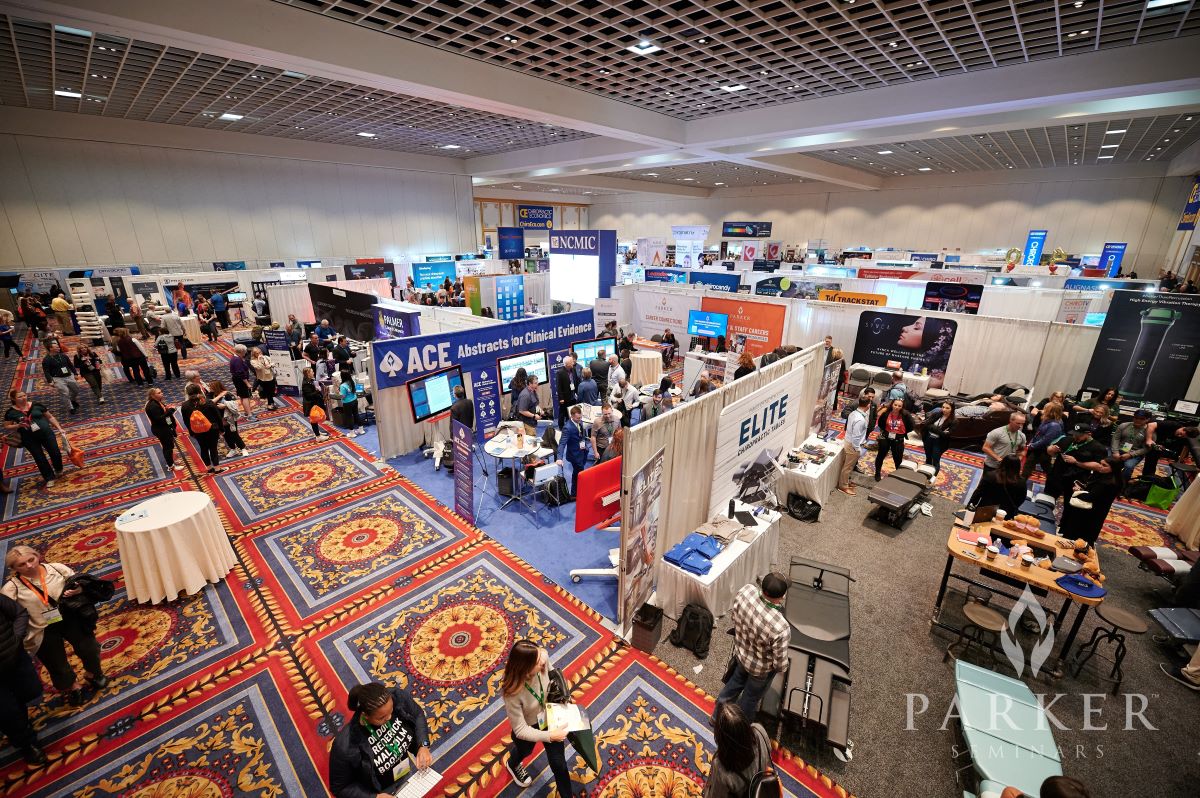
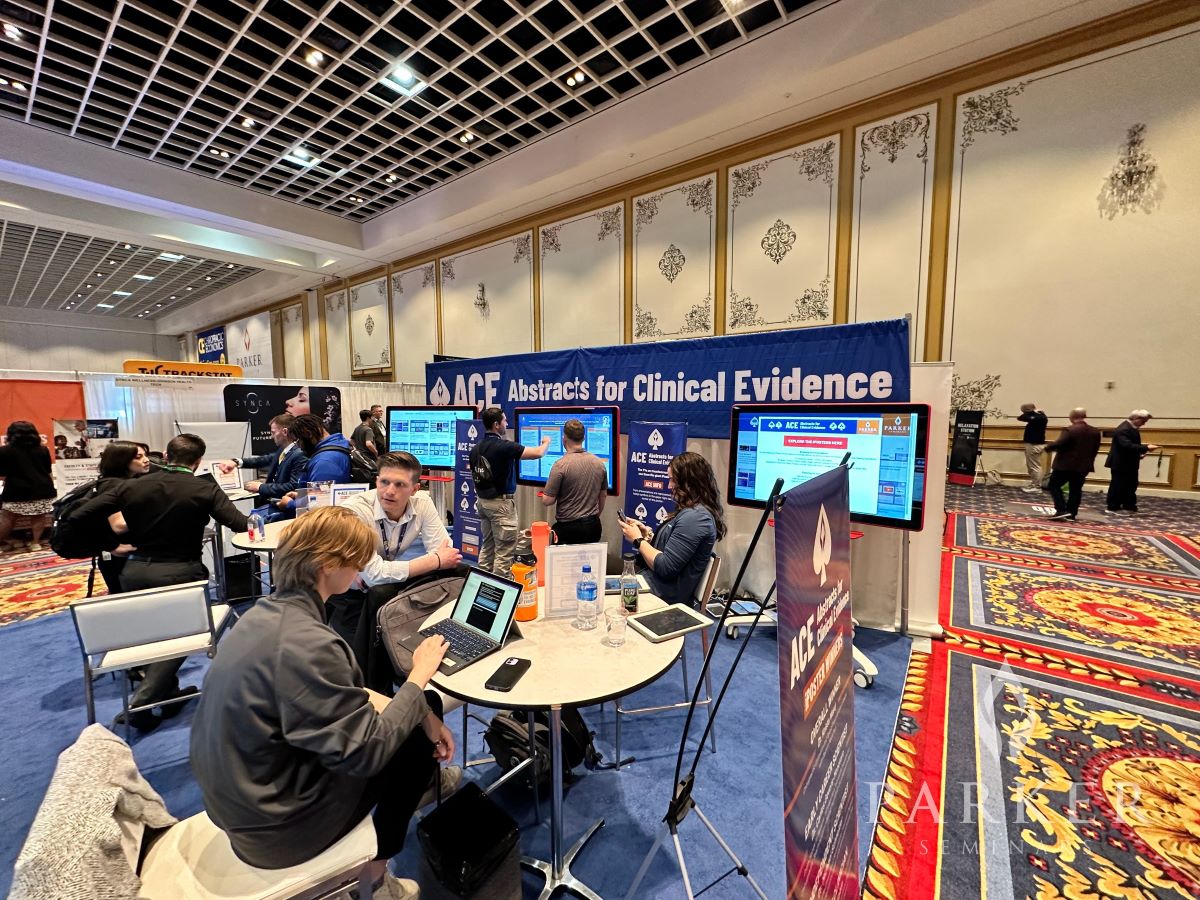
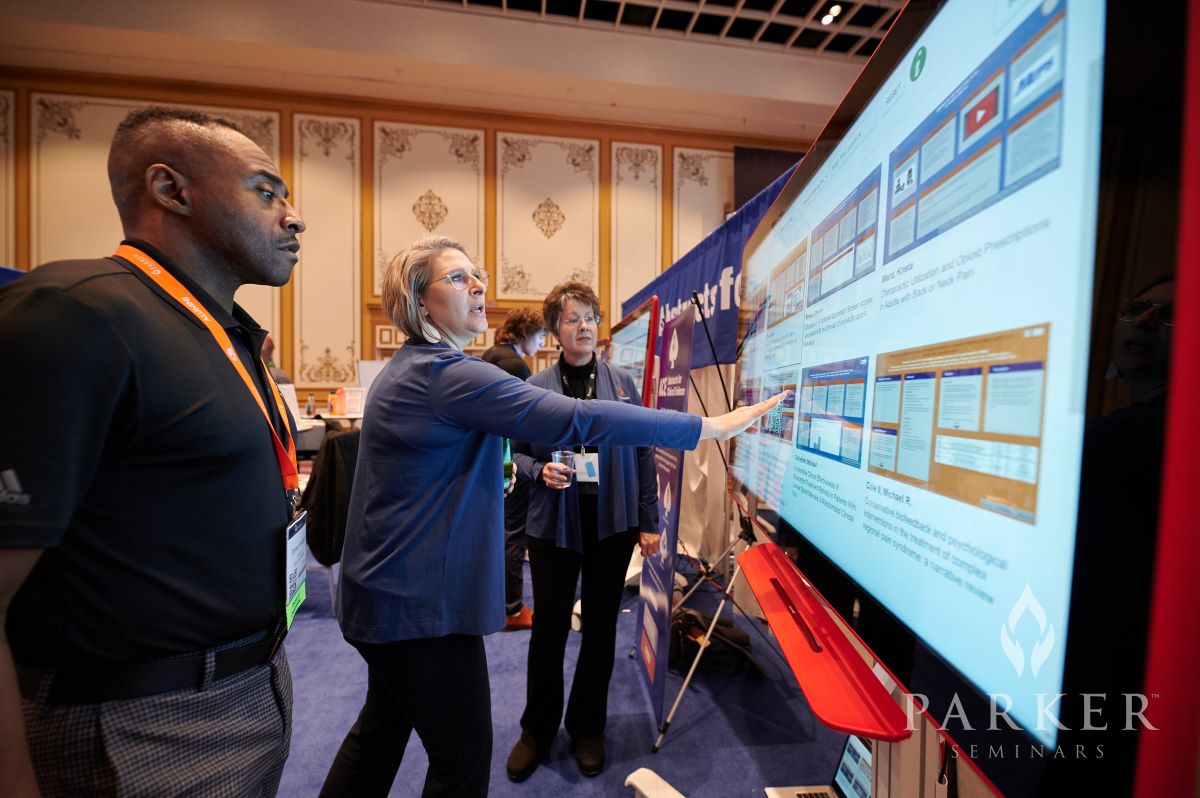
In February Parker Seminars and Parker Research Centre hosted the 2nd Annual Abstracts for Clinical Evidence (ACE) Program in Las Vegas. Presentations covered a range of topics like:
Chiropractic
Neuroscience
Nutrition
Human Performance
We worked with Parker organizers to develop iPoster templates with 4 preset backgrounds which had different colors and content box combinations depending on the research field. These were pre-loaded for authors prior to them logging in so all they needed to do was input their data and add their images, videos, sound files and other media to help showcase their research.
If your conference organizers have chosen to enable subtitles for videos you will be able to generate this using a linked AI. Please note that the AI can take up to 24 hours to generate the subtitles which can then be edited. Make sure that you allow plenty of time to generate captions for your videos and to adjust them as required afterwards.
First you will need to have a video uploaded in either the VIDEO REPOSITORY/GALLERY section, or under the VIDEO PRESENTATION section of your iPoster editor. Both of these buttons are located on the main menu. Please see the following FAQs on how to upload a video into these sections.
Generating subtitles for videos in VIDEO PRESENTATION.
Generating subtitles for videos in VIDEO REPOSITORY/GALLERY
1. Generating subtitles for videos in VIDEO PRESENTATION
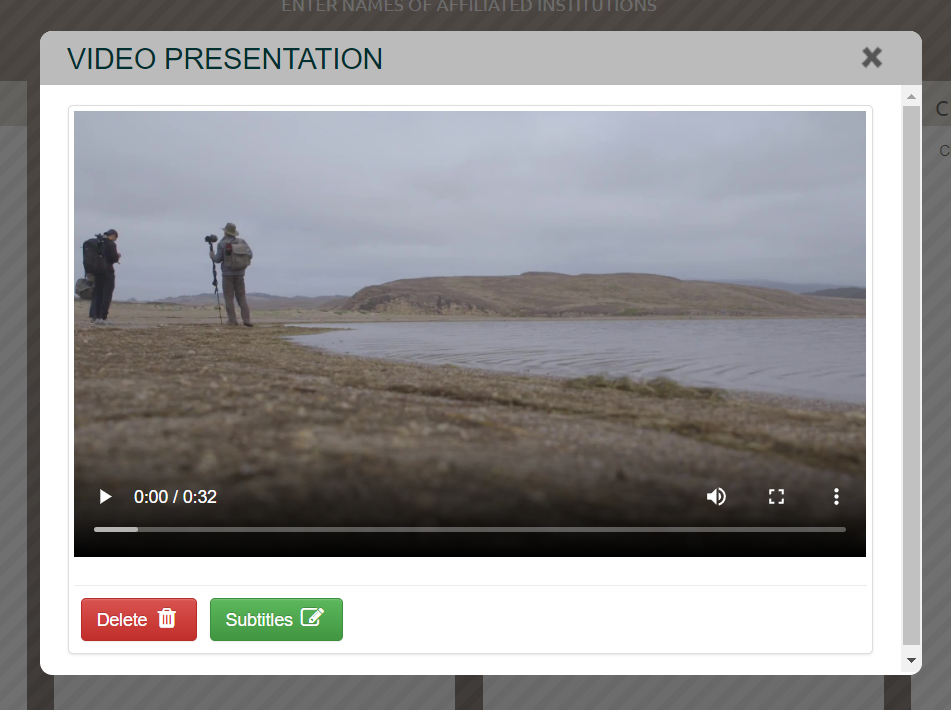
1. Upload your video in VIDEO PRESENTATION then click on the green ‘Subtitles’ button
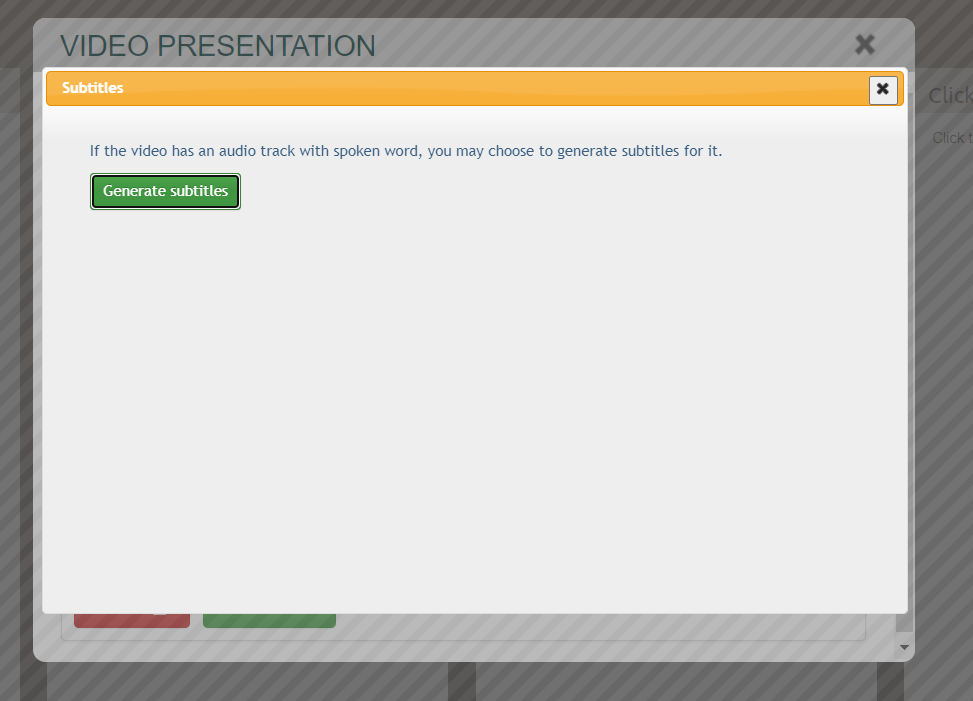
2. The following screen will pop up – click the ‘Generate Subtitles’ button.
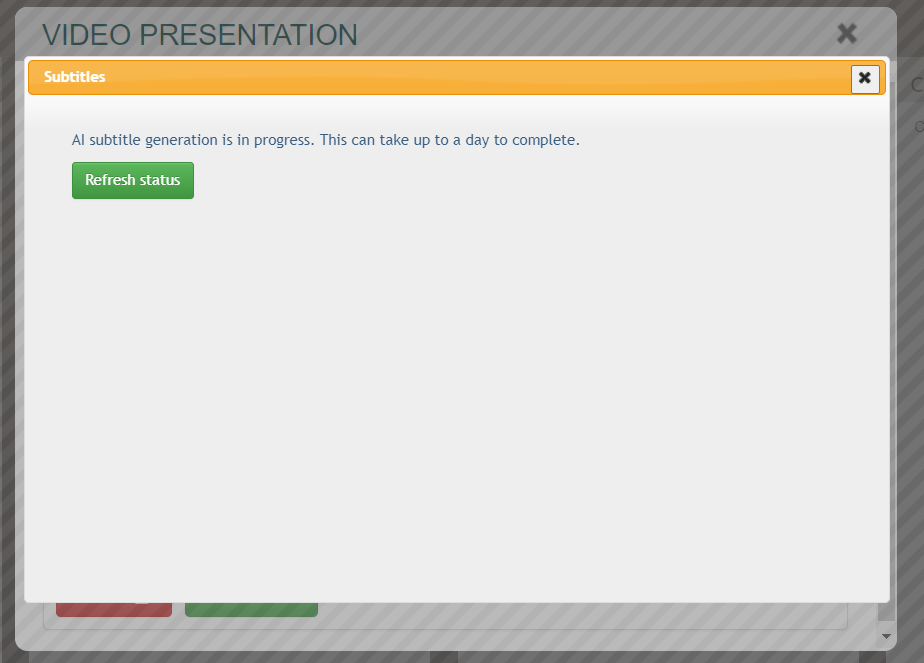
3. This screen will then be shown advising that the subtitle generation is in progress and to wait up to a day. Check back after 24 hours.
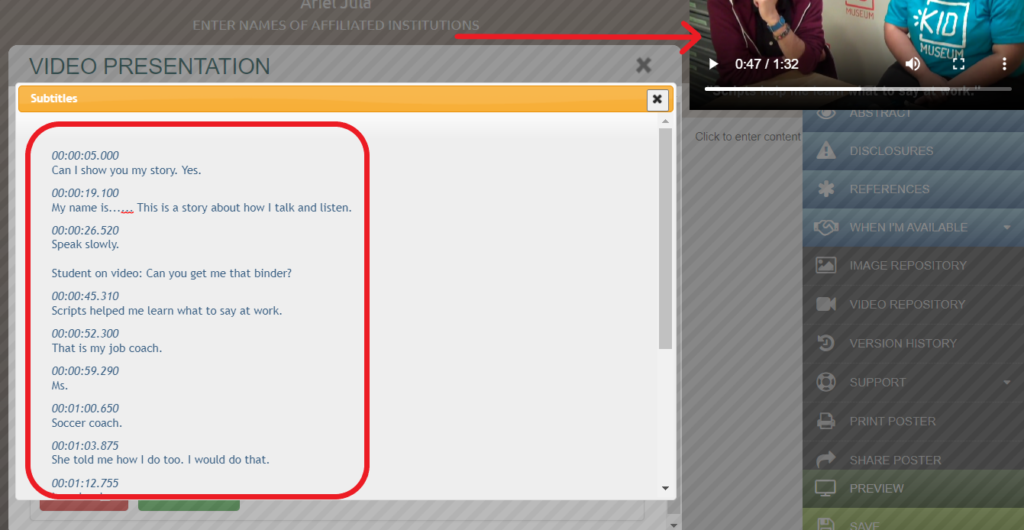
4. After 24 hours log back into your iPoster editor and open the VIDEO PRESENTATION screen. Click on Refresh status. The generated subtitles will open in a box where the text can be edited. A preview of the video will be available to the top right of the screen so you can run through it whilst you make edits.
5. Once you have completed your edits check your subtitles in preview mode. Click on Preview on the main menu then click on the Video Presentation button.
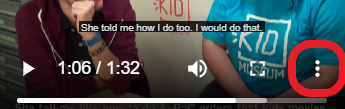
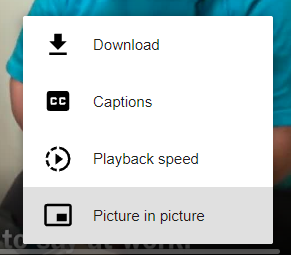
5. Click on the 3 vertical dots and select Captions to toggle the subtitles on and off.
2. Generating subtitles for videos in VIDEO REPOSITORY/GALLERY
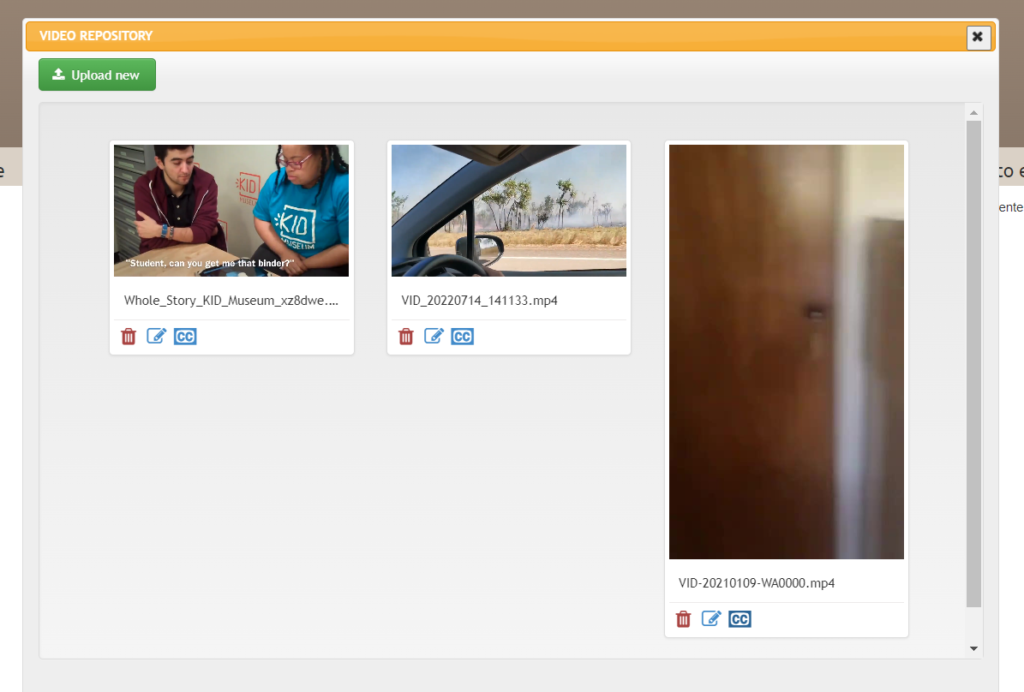
1. In the VIDEO REPOSITORY/VIDEO GALLERY you will see a preview of your uploaded videos. If you haven’t uploaded any videos yet you will see a blank screen with an ‘Upload New’ button.
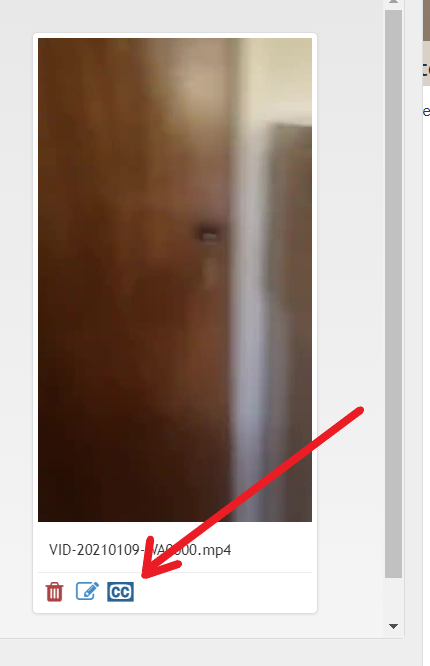
2. Click on the CC symbol below the video that you want to generate the subtitles for.
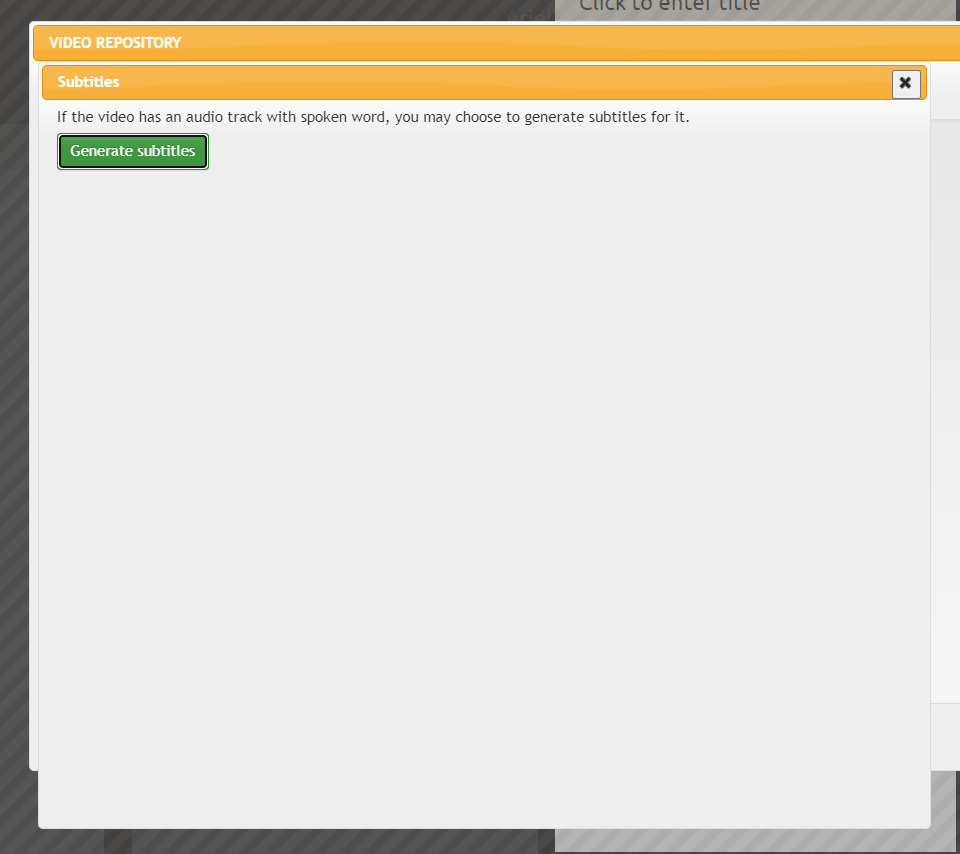
3.The below window will pop up. Click on ‘Generate subtitles’. Then wait up to 24 hours for the AI to complete the task. Continue to follow the instructions from step 4. in section 1 above.
Need further assistance? Reach out to our support team by sending a support request. Don’t forget to let us know which conference you’re creating a presentation for.
TheK-INBRE symposium is an annual professional research conference for scientists in Kansas to present their original research. Students present side-by-side with professional scientists and researchers providing them with networking and future collaboration opportunities. There were over 140 iPosters created for the event containing some of this research across a wide variety of fields such as public health and bioinformatics.
Joe was on-site in Kansas City supporting the event and he received some glowing feedback from one of the K-INBRE Symposium organizers, Clare Frantz:
Thank you so much for making sure that all of our iPoster sessions ran smoothly. I think they were a great success overall! So happy that they could be a major part of our symposium because I know they’re frequently everyone’s favorite part
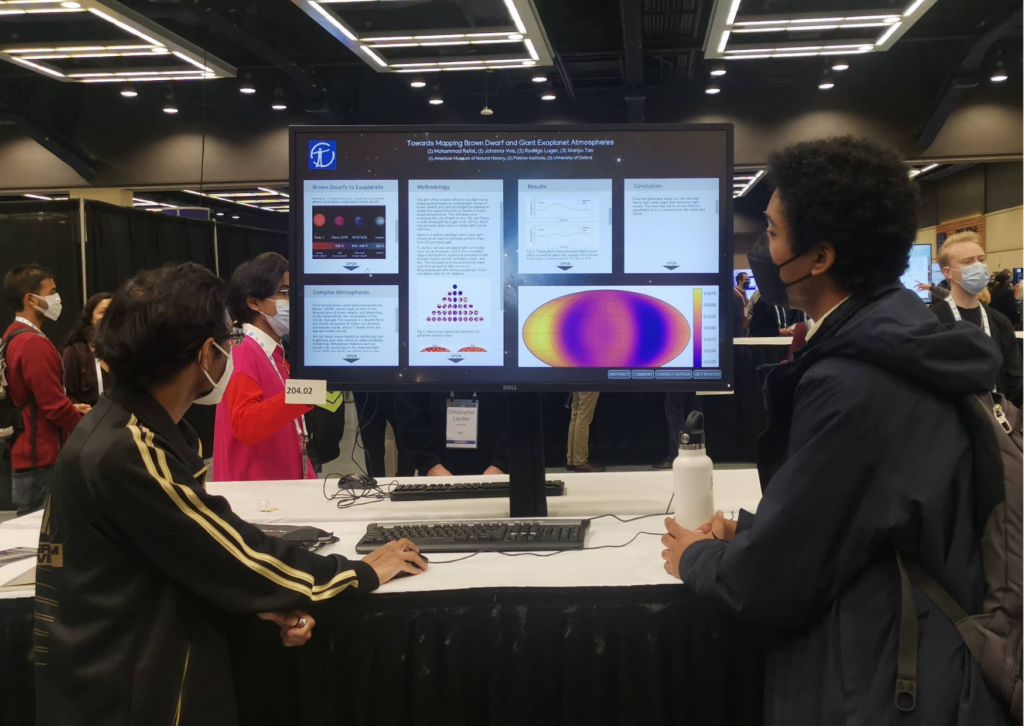
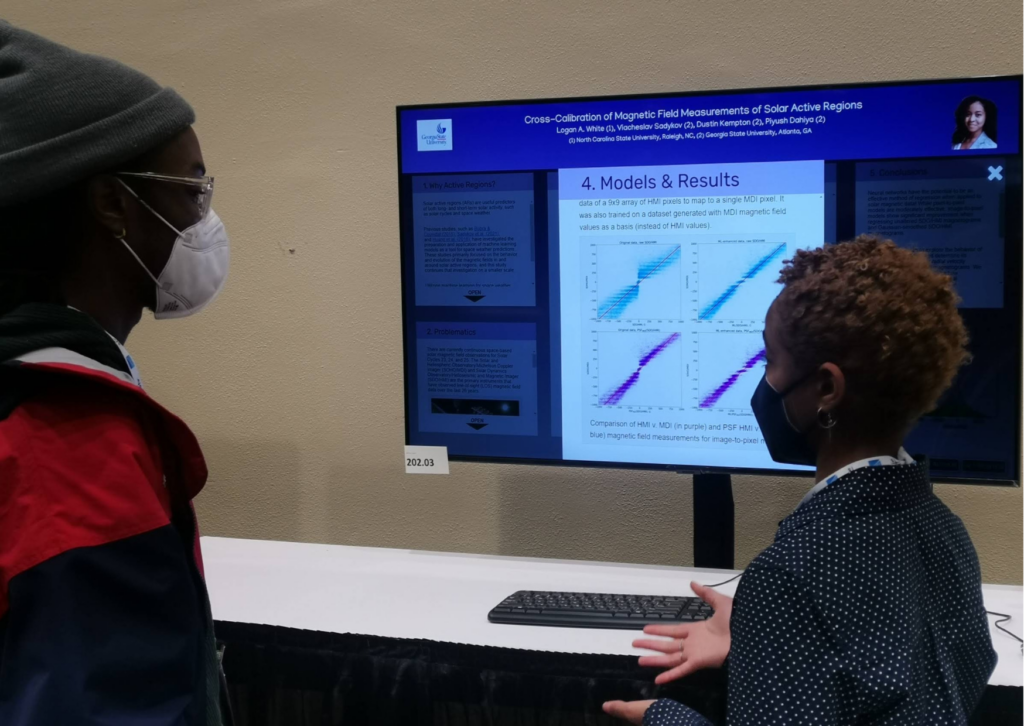
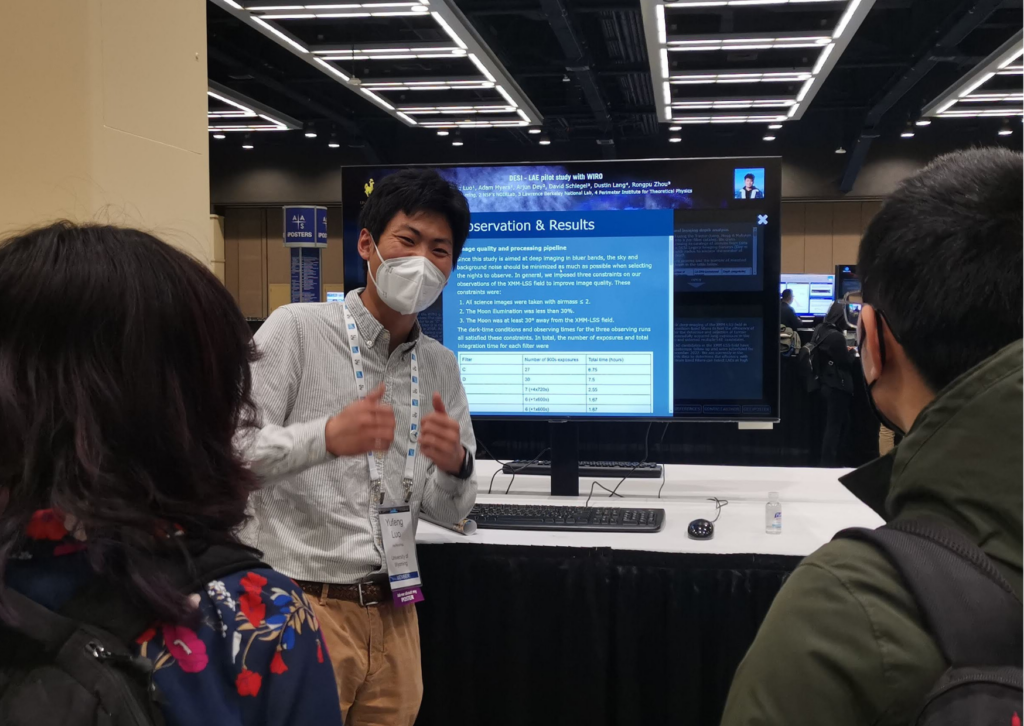
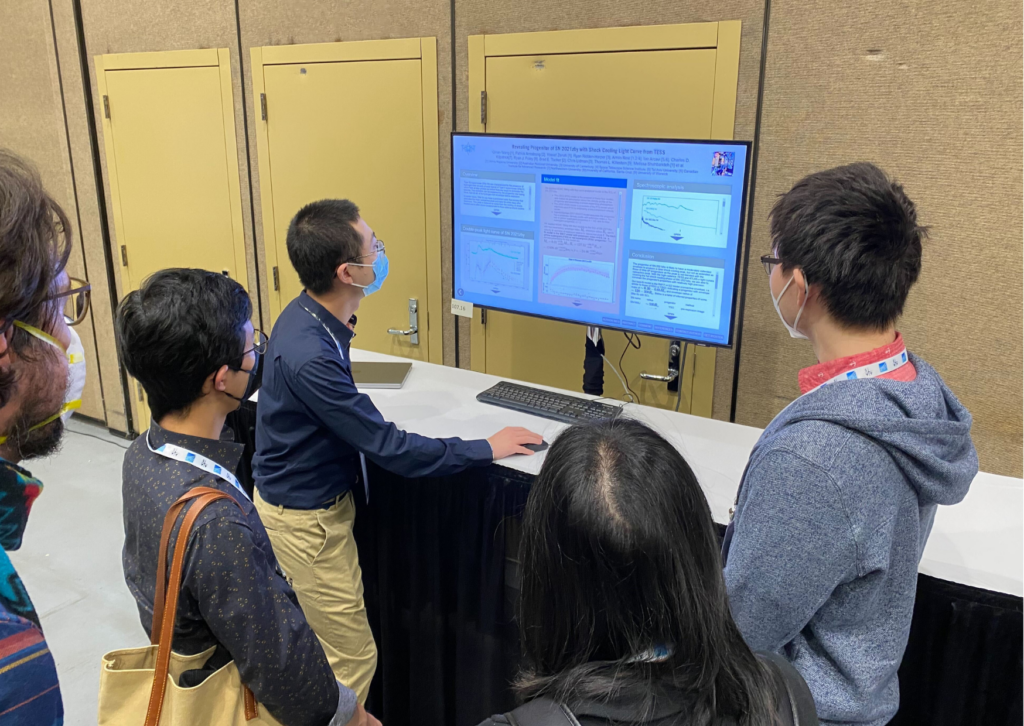
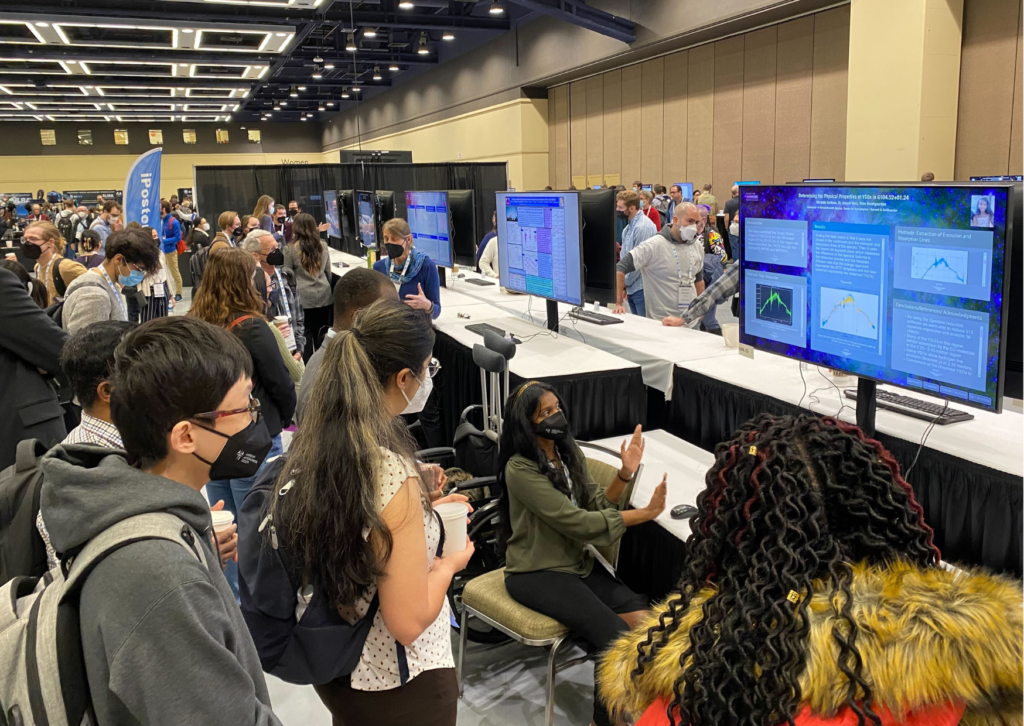
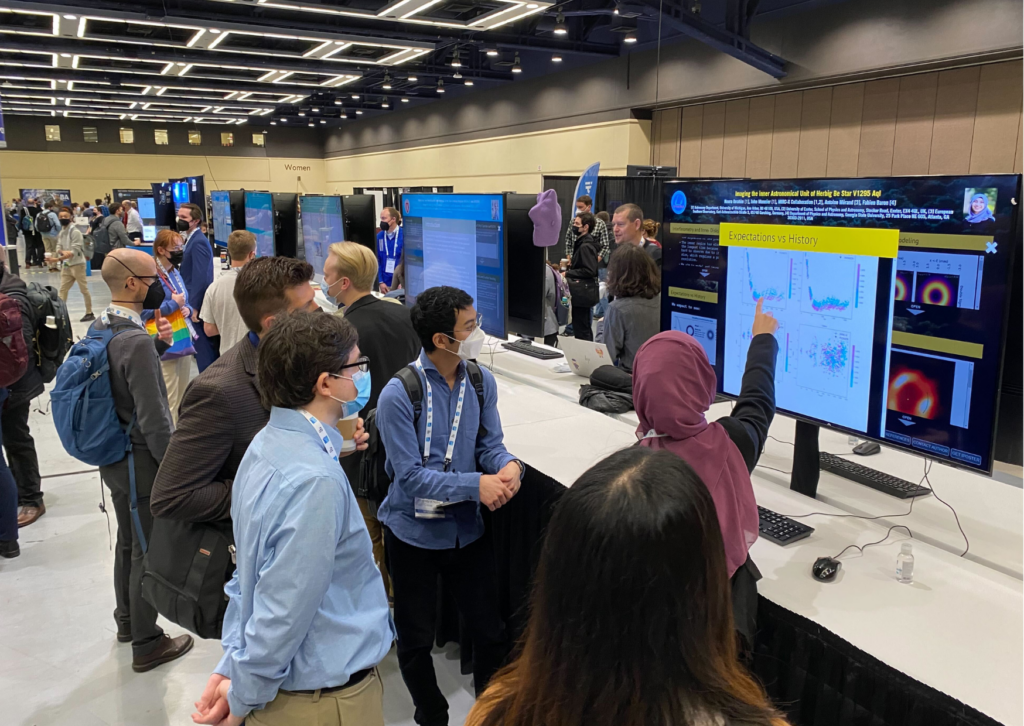
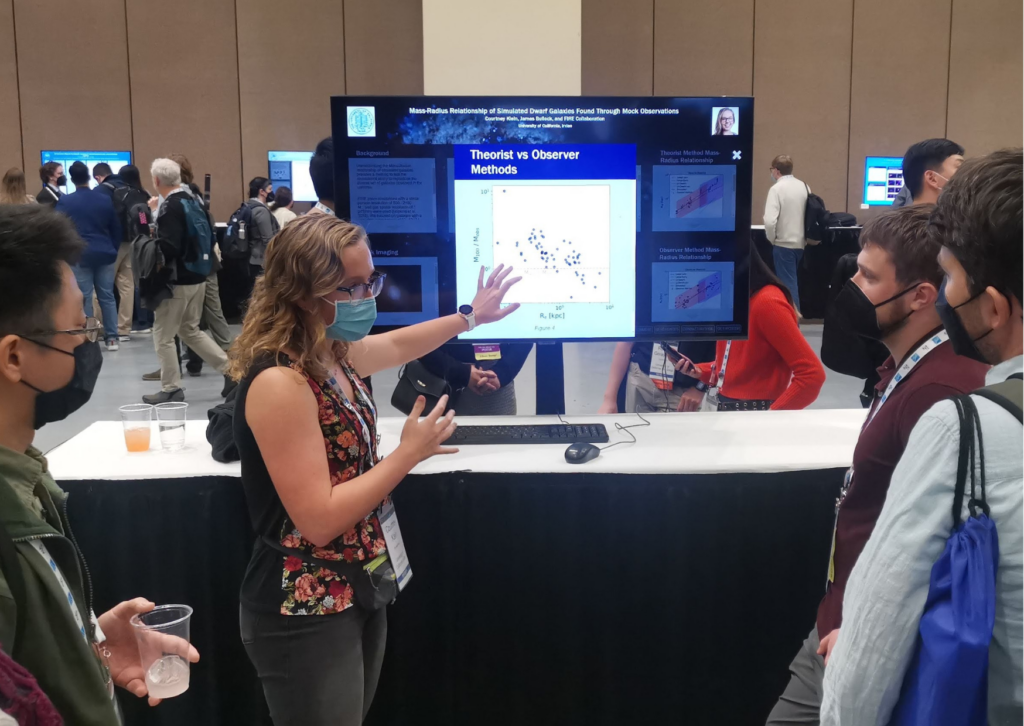
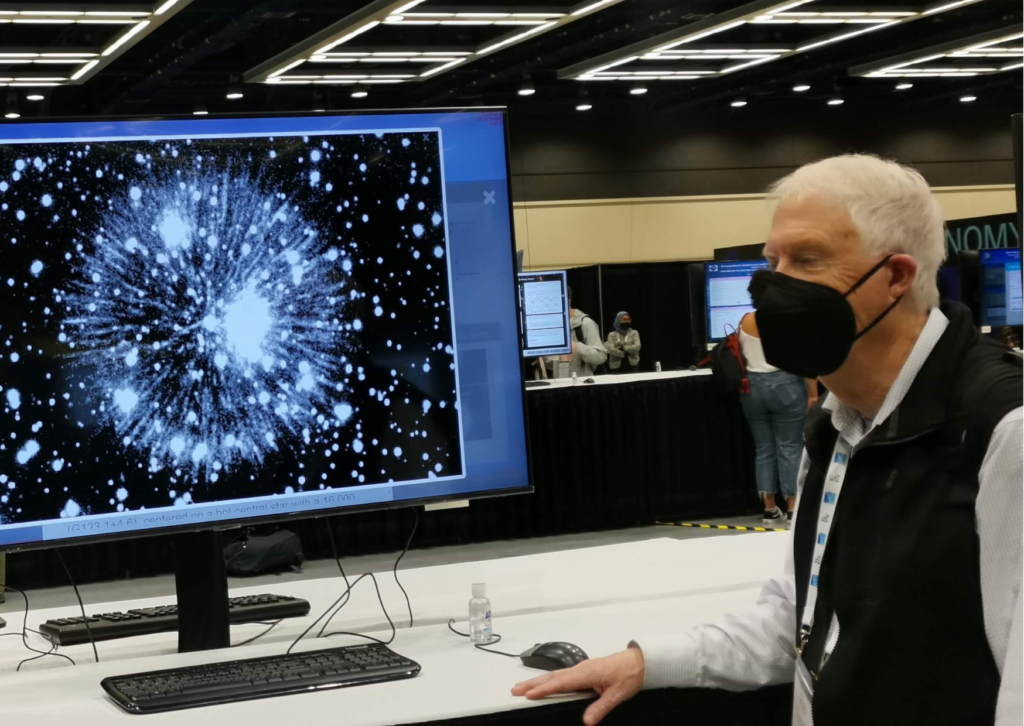
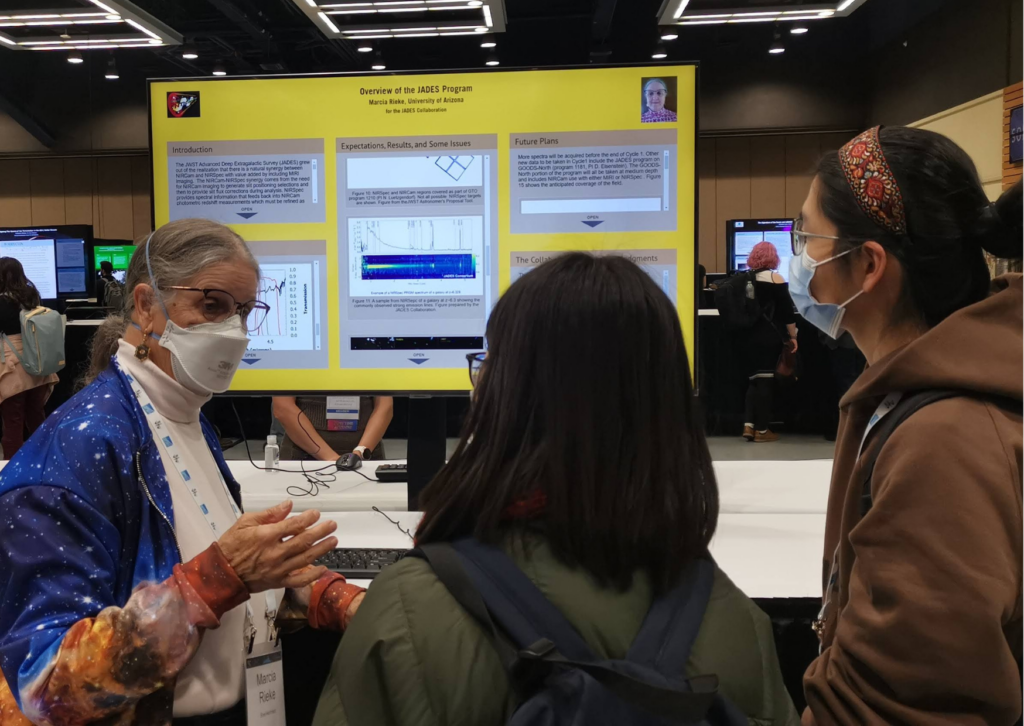
The American Astronomical Society‘s AAS 241 Winter Meeting was our first in-person conference for 2023. And what great meeting to kick the year off with. Isak, Joe and Felicity were on-site in Seattle for the event and were there to support iPoster authors and manage the sessions each day.
There were a record 150 iPoster screens setup for the duration of the conference. And over 1100 posters created and searchable in the online gallery. With 2-3 sessions per day over 4 days there was a lot of space science shared within this amazing community.
Image Use Agreement
Important Image Use Information
By copying or making any use of the image below, you acknowledge that
you have read and understand, and agree to, the Image Usage Agreement
below that governs your use of the Image. If you do not agree to the
Agreement’s terms, do not copy or use the Image in any way, unless you
have written permission signed by "Company".
Usage Agreement
Subject to the terms of this Agreement, you may use the Image solely
in whole for editorial use by press and/or industry analysts. This right
to use is personal to you and is not transferable by you to another
party. The Image cannot be used to promote or sell any product or
technology (such as on advertising, brochures, book-covers, stock
photos, t-shirts, or other promotional merchandise). You may not alter,
or modify the Image, in whole or in part, for any reason.
As between you and "Company", "Company" is and shall remain the sole and
exclusive owner of the Image. You will not delete, alter, or obfuscate
any proprietary legends relating to the Image, and each use will be
accompanied by the applicable proprietary attribution shown next to the
Image.
I have read, understood, and agree to the Image Usage Agreement
We use cookies on our website. Some of these cookies are necessary for our site to function at all, while others are only required for user experience and our statistics. By clicking “Accept”, you consent to the use of ALL the cookies we use. You may also click on 'Cookie Settings' to provide controlled consent Read More.
This website uses cookies to improve your experience while you navigate through the website. Out of these, the cookies that are categorized as necessary are stored on your browser as they are essential for the working of basic functionalities of the website. We also use third-party cookies that help us analyze and understand how you use this website. These cookies will be stored in your browser only with your consent. You also have the option to opt-out of these cookies. But opting out of some of these cookies may affect your browsing experience.
Necessary cookies are absolutely essential for the website to function properly. These cookies ensure basic functionalities and security features of the website, anonymously.
Cookie
Duration
Description
cookielawinfo-checkbox-analytics
11 months
This cookie is set by GDPR Cookie Consent plugin. The cookie is used to store the user consent for the cookies in the category "Analytics".
cookielawinfo-checkbox-functional
11 months
The cookie is set by GDPR cookie consent to record the user consent for the cookies in the category "Functional".
cookielawinfo-checkbox-necessary
11 months
This cookie is set by GDPR Cookie Consent plugin. The cookies is used to store the user consent for the cookies in the category "Necessary".
cookielawinfo-checkbox-others
11 months
This cookie is set by GDPR Cookie Consent plugin. The cookie is used to store the user consent for the cookies in the category "Other.
cookielawinfo-checkbox-performance
11 months
This cookie is set by GDPR Cookie Consent plugin. The cookie is used to store the user consent for the cookies in the category "Performance".
viewed_cookie_policy
11 months
The cookie is set by the GDPR Cookie Consent plugin and is used to store whether or not user has consented to the use of cookies. It does not store any personal data.
Functional cookies help to perform certain functionalities like sharing the content of the website on social media platforms, collect feedbacks, and other third-party features.
Performance cookies are used to understand and analyze the key performance indexes of the website which helps in delivering a better user experience for the visitors.
Analytical cookies are used to understand how visitors interact with the website. These cookies help provide information on metrics the number of visitors, bounce rate, traffic source, etc.
Advertisement cookies are used to provide visitors with relevant ads and marketing campaigns. These cookies track visitors across websites and collect information to provide customized ads.